インストール
https://www.rust-lang.org/tools/install
Windowsの場合は、下記が必要となります。
https://visualstudio.microsoft.com/visual-cpp-build-tools/
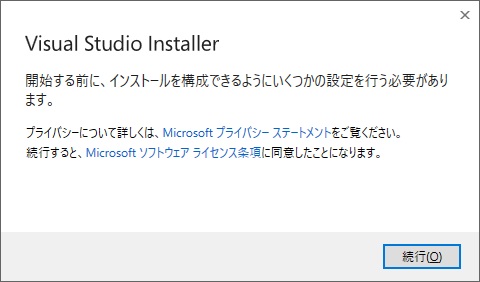
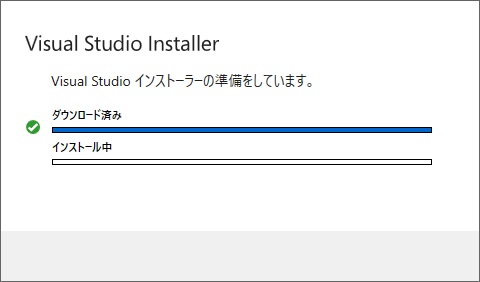
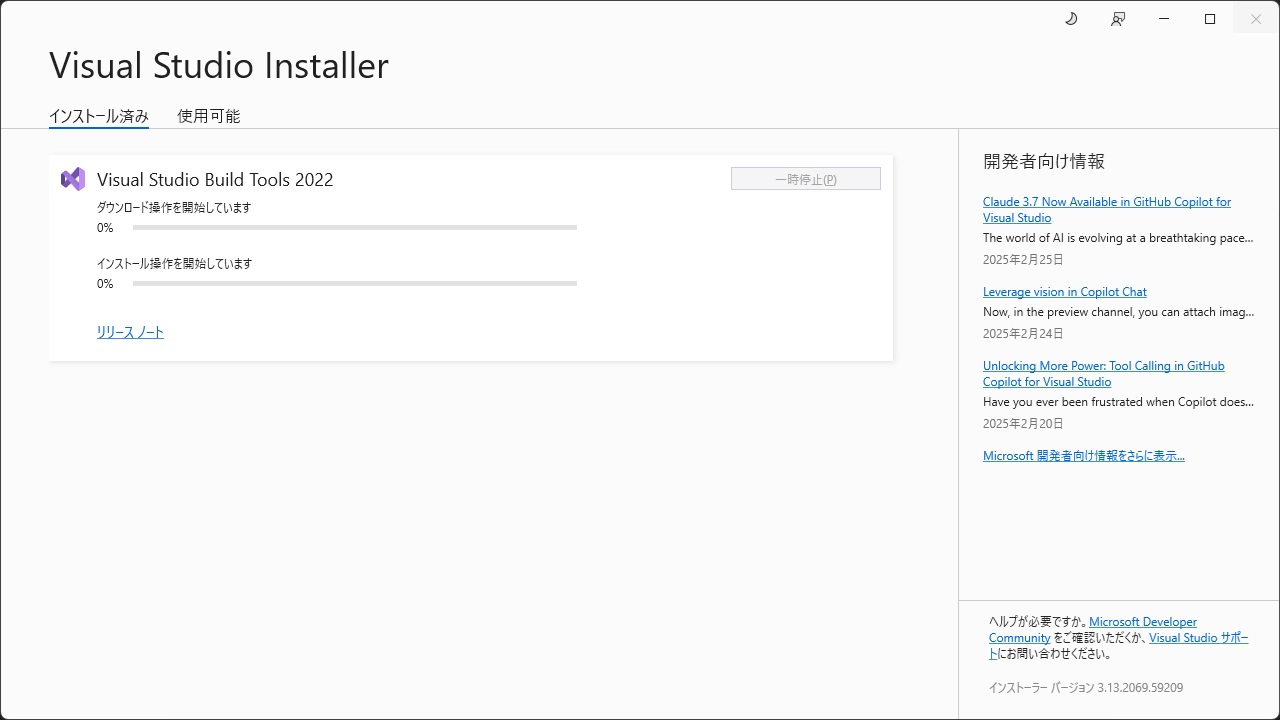
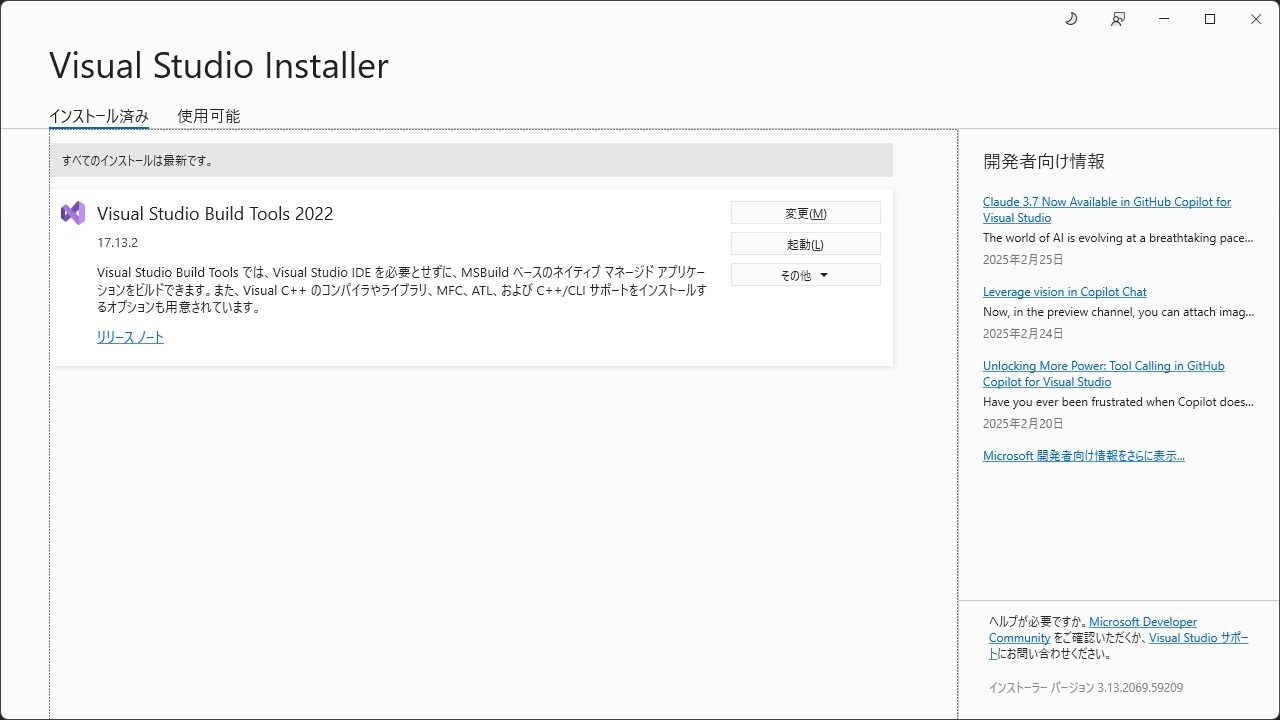
vs_BuildTools.exe を実行します。
DOWNLOAD RUSTUP-INIT.EXE
からダウンロードした rustup-init.exe を実行します。
Rust Visual C++ prerequisites

Rust requires the Microsoft C++ build tools for Visual Studio 2017 or
later, but they don't seem to be installed.

You can acquire the build tools by installing Microsoft Visual Studio.

  https://visualstudio.microsoft.com/downloads/

Check the box for "Desktop development with C++" which will ensure that the
needed components are installed. If your locale language is not English,
then additionally check the box for English under Language packs.

For more details see:

  https://rust-lang.github.io/rustup/installation/windows-msvc.html

Install the C++ build tools before proceeding.

If you will be targeting the GNU ABI or otherwise know what you are
doing then it is fine to continue installation without the build
tools, but otherwise, install the C++ build tools before proceeding.

Continue? (y/N)
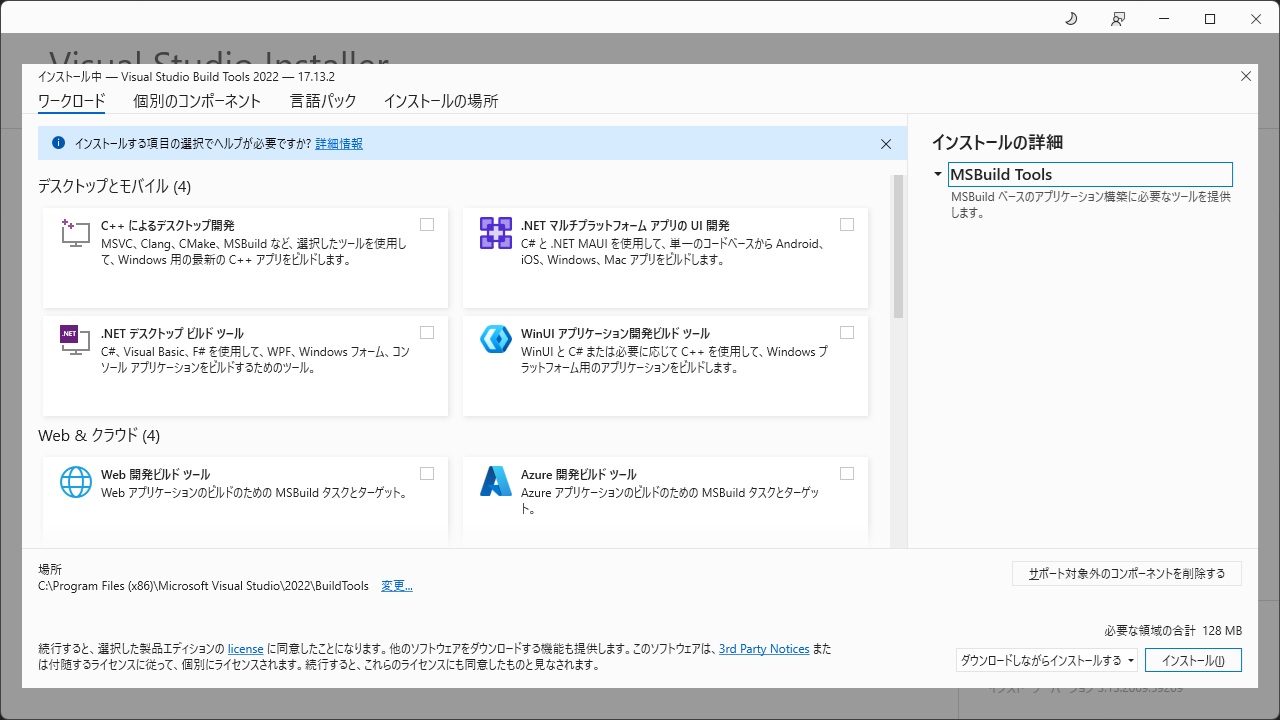
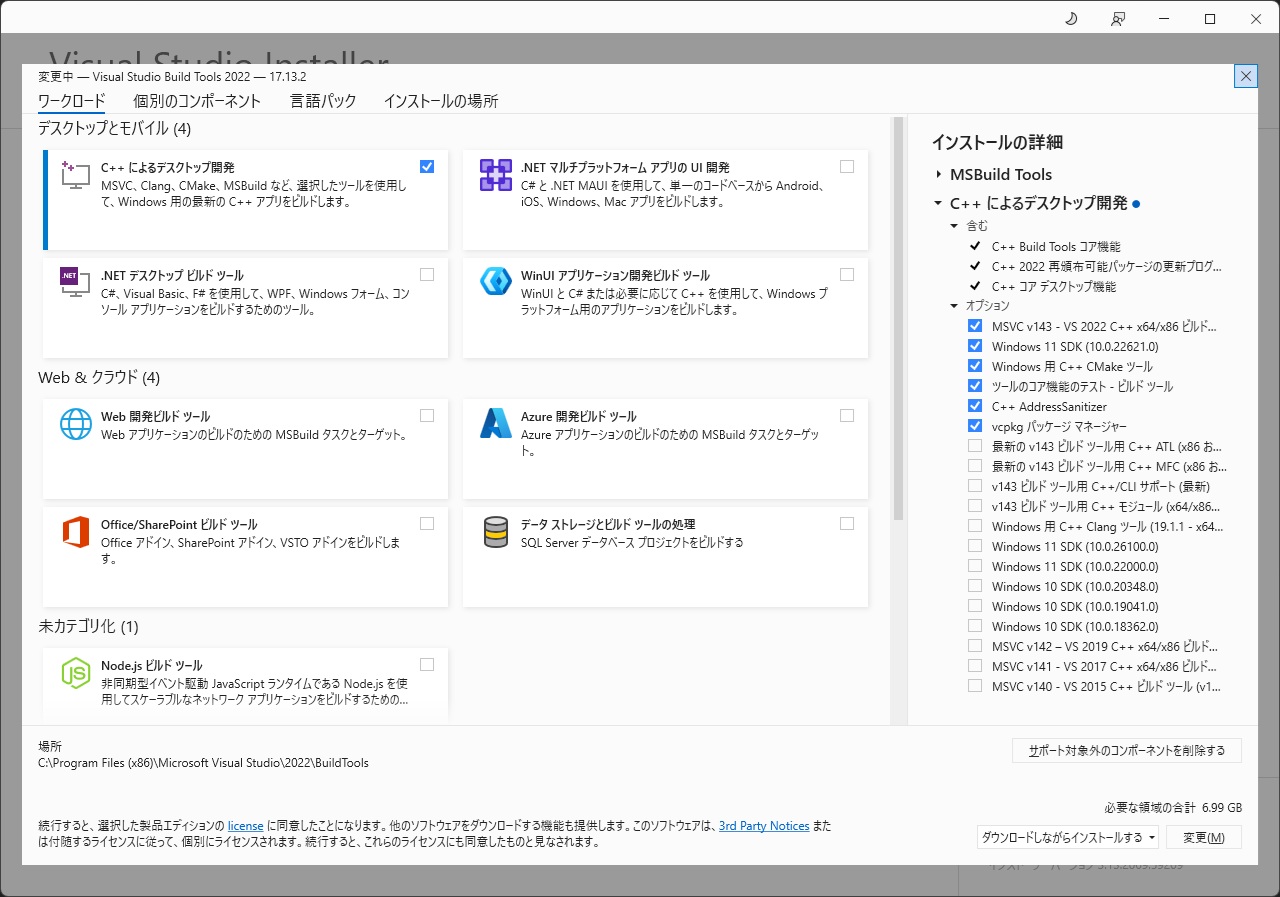
“Desktop development with C++” が必要となるようです。
日本語では”C++ によるデスクトップ開発”と表記されています。これをインストールします。
6.99GBということでそれなりの容量があります。
Welcome to Rust!

This will download and install the official compiler for the Rust
programming language, and its package manager, Cargo.

Rustup metadata and toolchains will be installed into the Rustup
home directory, located at:

  D:\home\wurly\.rustup

This can be modified with the RUSTUP_HOME environment variable.

The Cargo home directory is located at:

  C:\usr\cargo

This can be modified with the CARGO_HOME environment variable.

The cargo, rustc, rustup and other commands will be added to
Cargo's bin directory, located at:

  C:\usr\cargo\bin

This path will then be added to your PATH environment variable by
modifying the HKEY_CURRENT_USER/Environment/PATH registry key.

You can uninstall at any time with rustup self uninstall and
these changes will be reverted.

Current installation options:


   default host triple: x86_64-pc-windows-msvc
     default toolchain: stable (default)
               profile: default
  modify PATH variable: yes

1) Proceed with standard installation (default - just press enter)
2) Customize installation
3) Cancel installation
>
>1

info: profile set to 'default'
info: default host triple is x86_64-pc-windows-msvc
info: syncing channel updates for 'stable-x86_64-pc-windows-msvc'
info: latest update on 2025-02-20, rust version 1.85.0 (4d91de4e4 2025-02-17)
info: downloading component 'cargo'
info: downloading component 'clippy'
info: downloading component 'rust-docs'
 18.3 MiB /  18.3 MiB (100 %)  17.4 MiB/s in  1s
info: downloading component 'rust-std'
 22.3 MiB /  22.3 MiB (100 %)  16.0 MiB/s in  1s
info: downloading component 'rustc'
 63.8 MiB /  63.8 MiB (100 %)  16.2 MiB/s in  3s
info: downloading component 'rustfmt'
info: installing component 'cargo'
  6.9 MiB /   6.9 MiB (100 %)   5.5 MiB/s in  1s
info: installing component 'clippy'
info: installing component 'rust-docs'
 18.3 MiB /  18.3 MiB (100 %)   2.3 MiB/s in  8s
info: installing component 'rust-std'
 22.3 MiB /  22.3 MiB (100 %)   4.9 MiB/s in  4s
info: installing component 'rustc'
 63.8 MiB /  63.8 MiB (100 %)   4.6 MiB/s in 13s
info: installing component 'rustfmt'
info: default toolchain set to 'stable-x86_64-pc-windows-msvc'

  stable-x86_64-pc-windows-msvc installed - rustc 1.85.0 (4d91de4e4 2025-02-17)


Rust is installed now. Great!

To get started you may need to restart your current shell.
This would reload its PATH environment variable to include
Cargo's bin directory (C:\usr\cargo\bin).

Press the Enter key to continue.